 Data 360 Inspector
Features · Query and explore
SQL
Data 360 SQL with tabs, autocomplete, saved queries, history and downloads.
Video coming soon.
From the article Run Data Cloud SQL in tabs, with your objects beside the editor (part 3 of the series).
Half of my Data Cloud troubleshooting ends in a SQL query. How many Individuals came in from the CRM stream yesterday? Does this email exist in Contact Point Email at all? Which unified profile does this source record belong to?
Data Cloud has a Query Editor, and it works, but I wanted a few things it does not give me: several queries open at once, the field names of my org next to the editor, results I can filter and download in full, and a history of what I ran last week. That is the SQL page in Data 360 Inspector.
Query tabs
The page opens with one tab and a starter query on the Individual Data Model Object (DMO), so you can press Run and see rows straight away. The plus button adds a tab, up to 12, and each tab keeps its own SQL, its own results and its own saved-query link.
Tabs run on their own, so you can start a slow query in one tab and keep working in another. A tab that is running shows a blue dot, and a tab whose results arrived while you were elsewhere shows an amber dot until you open it. Double-click a tab to rename it; a small Rename tab box opens with the current name. Closing a tab with SQL that is not saved asks first.
The tabs and their SQL are remembered in your browser, so they are still there tomorrow. Ctrl+Enter (Cmd+Enter on a Mac) runs the query, or only the selected text when there is a selection, which is how I run one statement out of a scratch tab full of them. If a query takes too long, Stop waiting stops the page from waiting for it.
Other pages send their SQL here. Query on an object, Open in SQL on problem records, and the SQL buttons on People all open the SQL page with the query filled in, in the current tab when it is empty and in a new tab when it is not.
The Objects panel
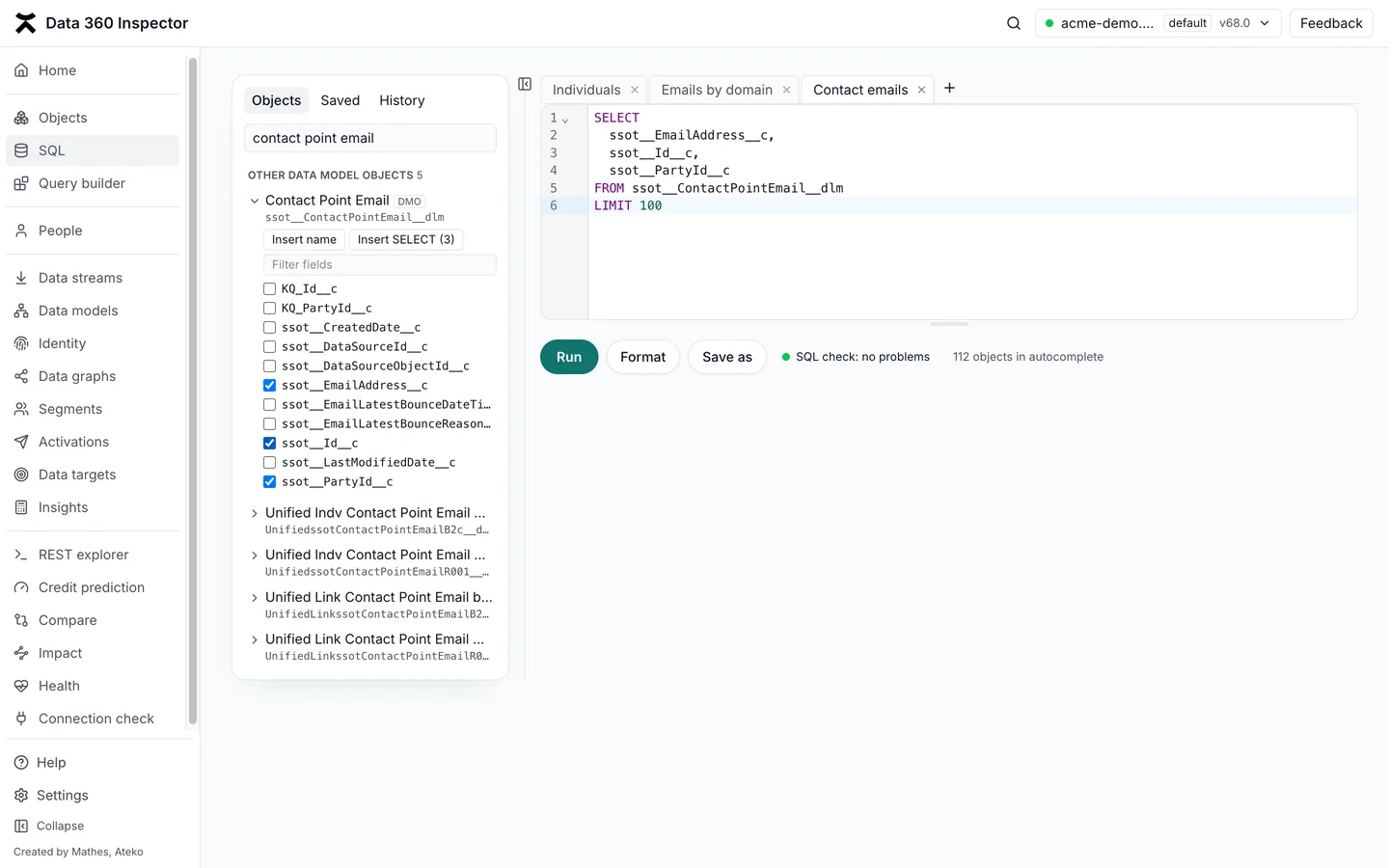
The panel on the left has three views: Objects, Saved and History. Objects lists the objects of the data space, grouped by how often people query them: Profile, Engagement, Other data model objects, Calculated insights, Segment membership and Data lake objects. In my org, Contact Point Email sits under Other data model objects, not Profile. Search narrows the list by label or API name.
Click an object to see its fields. From there you can:
- Insert name, which puts the object's API name at the cursor.
- Click a field, which inserts that field's name.
- Tick a few fields and press Insert SELECT, which inserts a SELECT of those fields, one per line, with
LIMIT 100(or of every field when nothing is ticked). The button counts the ticked fields, for example "Insert SELECT (3)".
Inserted text is highlighted for a moment, so you can see where it went.
Autocomplete
The editor is CodeMirror with the PostgreSQL dialect, which is the closest match to Data Cloud SQL. Table and field names come from your org's metadata, and the line under the editor says how many objects are in autocomplete.
Two details make it fit Data Cloud better:
- Field names are offered without a table prefix, for every object named in the FROM and JOIN clauses of the statement. You do not have to type
e.to see the fields ofe. - Names are inserted as they are written (
ssot__FirstName__c), not wrapped in double quotes, because Data Cloud names work unquoted.
Format tidies the SQL with uppercase keywords. The SQL check next to it, which comments on the SQL as you type, is tomorrow's topic.
Results
The result line says how many rows are loaded, out of how many the query returned, and how long it took. The first 1,000 rows load with the query, and Load 1,000 more fetches the next page. My demo org is small, so the 180 email addresses all arrive in the first page.
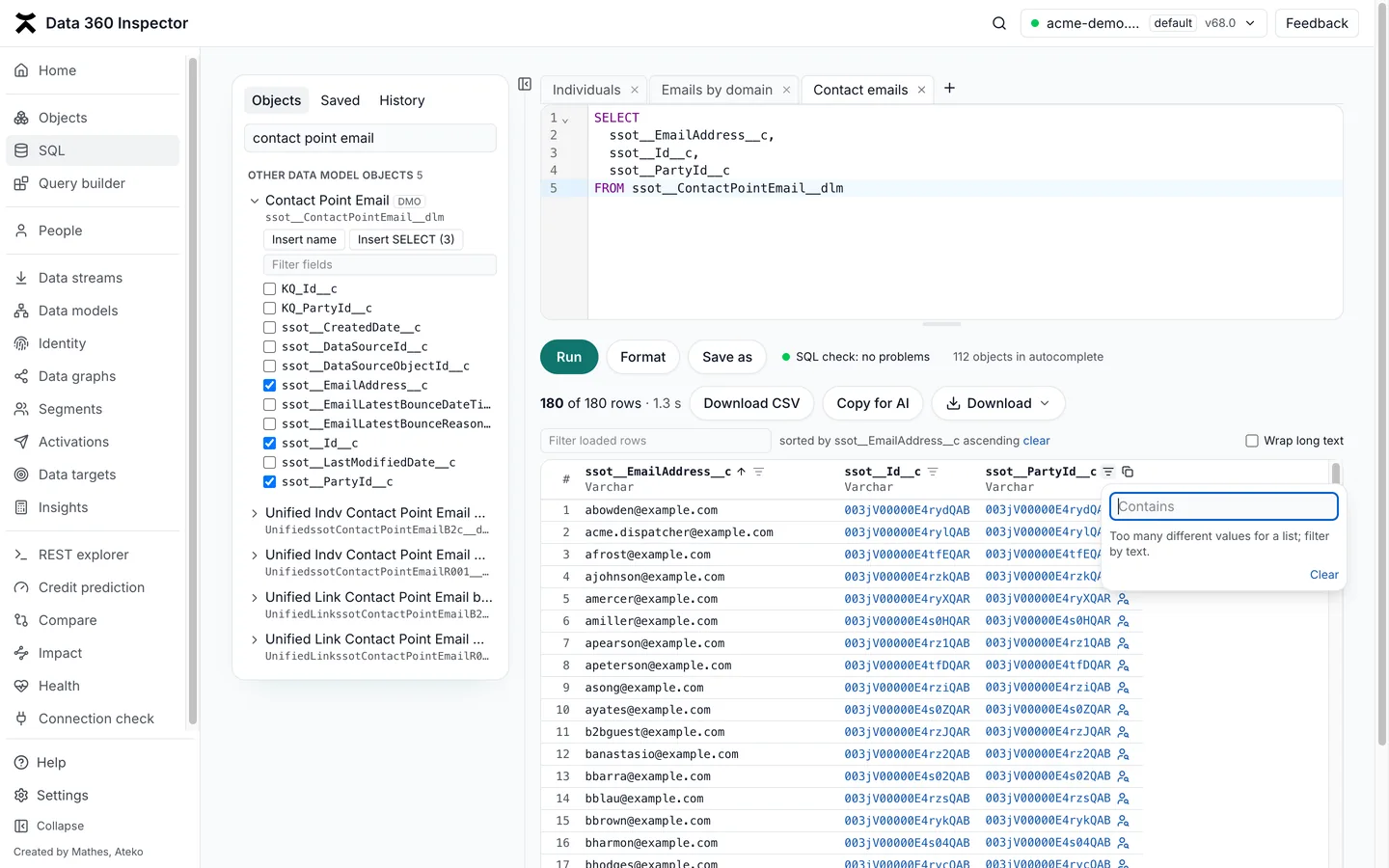
The table has the controls I reach for most:
- Click a column name to sort, and click again to reverse.
- The funnel on a column filters by its values, or by text when a column has too many different values for a list, and Filter loaded rows searches every column.
- Click a cell to see its full value; a cell holding JSON opens in a JSON viewer.
- The copy icon on a column copies all its values.
- Wrap long text shows long values in full.
A column that holds an Individual ID gets a small person icon, and the cell panel has View all details, which opens that person on People with the ruleset that unified them. That link is how most of my SQL sessions end: a query finds someone odd, and one click shows me everything about them.
Sorting and filtering work on the rows already loaded. Download CSV is different: it fetches every row of the result, in pages, up to 500,000 rows, and shows its progress while it does. The Download menu has the loaded rows as a spreadsheet or Markdown.
Copy for AI
Copy for AI copies the SQL and the first 50 rows as Markdown, ready to paste into Claude or another assistant with a question such as "why are there two rows per person here?"
When a query fails, the error box has its own Copy for AI. It copies the SQL, the error, the API version and the data space as Markdown, together with anything the SQL check found, which is usually enough for an assistant to suggest a fix. Some errors also get a plain-words explanation under them: for example, when an object reads from an external system through zero copy and that table is gone, the page says so in plain words next to the raw "foreign data source" message.
Saved queries and history
Save as names a query and keeps it under Saved; the name starts as the tab's name. A tab opened from a saved query shows Save instead, which updates it, and the save dialog also offers Save as new.
History keeps the last 50 queries you ran, newest first, with the first line of the SQL, the time and the row count or "failed". Click one to open it in a tab. Home shows the latest four under Recent queries.
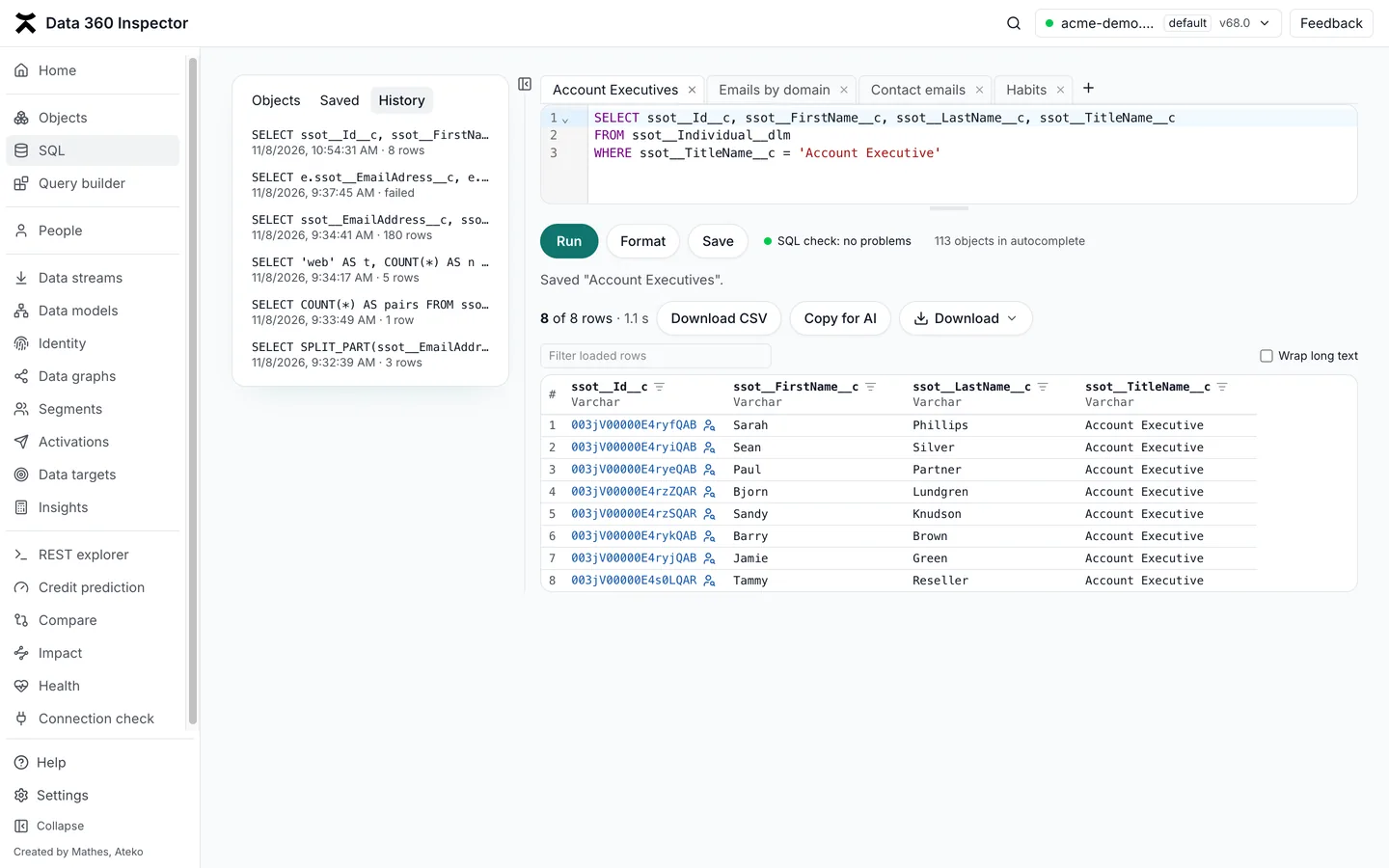
Saved, the tab next to History, lists the saved queries by name; in my org that is Account Executives, Emails by domain and Contact emails.
Saved queries and history are kept in your browser and are not tied to one org, so a query you saved in a sandbox is there when you connect to production. Only the SQL is kept, never the rows. An administrator can turn query history off with a policy (Day 33).
Limits
A few things to know:
- Sorting, Filter loaded rows and the column filters work on the rows loaded so far, not on the whole result. Load more rows, or put the condition in the SQL.
- Download CSV stops at 500,000 rows, and the page says so when a result is larger.
- Data Cloud returns rows of a query without ORDER BY in no stable order, so two pages of the same unordered query can overlap or miss rows. Add ORDER BY when you page through or download a large result.
- Stop waiting stops the Inspector from waiting. I have not seen anything in the code that cancels the query in Data Cloud itself.