 Data 360 Inspector
Features · Start here
Pullout panel
A small Data 360 Inspector beside any Salesforce page, with search, profile lookup and a SQL editor.
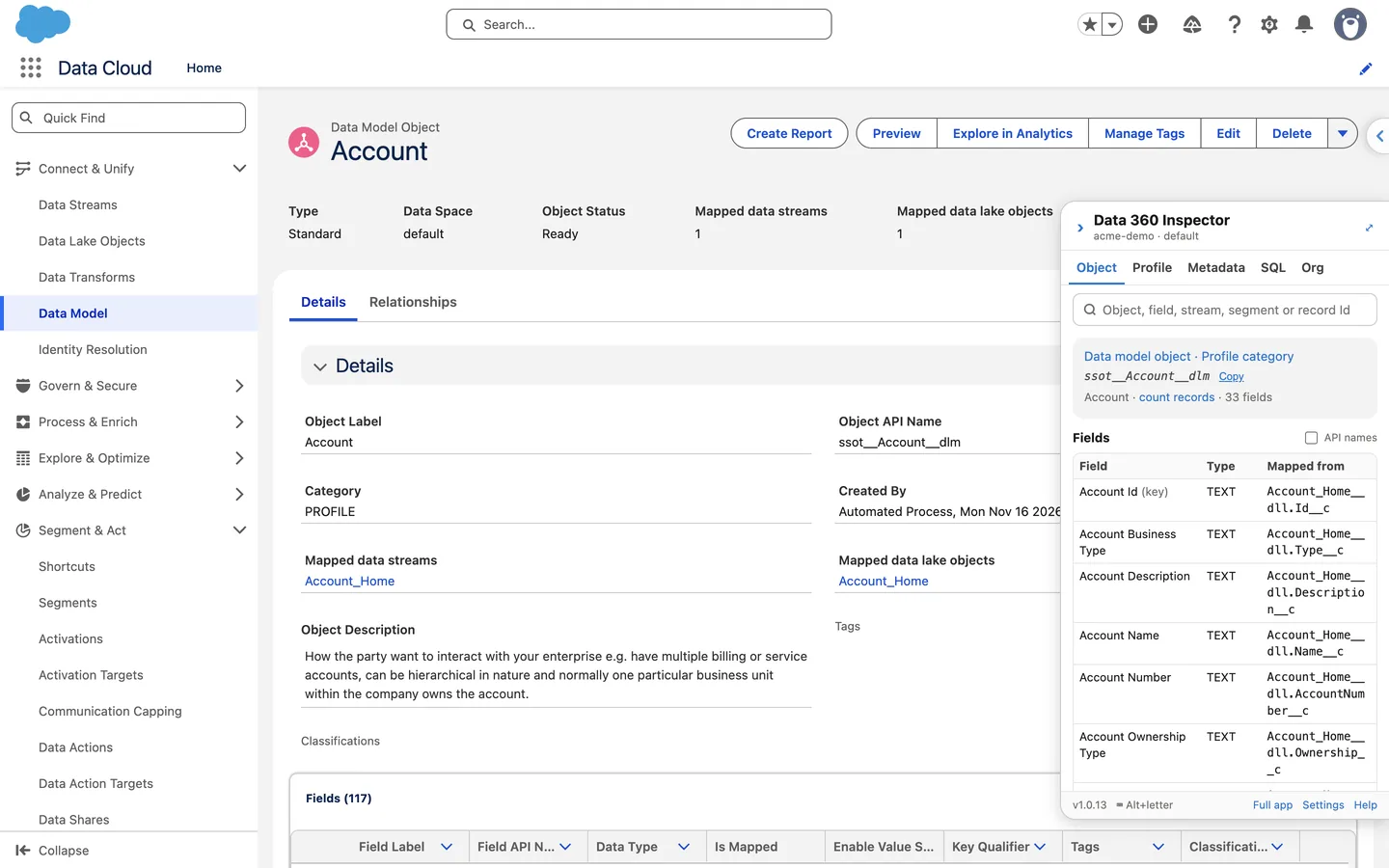
Video coming soon.
From the article Data 360 answers on the page you are already on (part 34 of the series).
For 33 days every answer has lived in the Inspector's own tab. That works when I sit down to investigate something. It works less well in the middle of a task: I am on a data model object's page in Setup, or on a segment, and I want one fact about it. Switching to another tab, finding the same item and switching back is exactly the clicking the Inspector was meant to remove.
So the Inspector now also comes to the page. A small tab on the right edge of every Lightning and Setup page opens a compact panel about whatever the page shows. If you use Salesforce Inspector Reloaded, the idea will look familiar: it has done this for core Salesforce for years, and the panel follows its look on purpose.
The edge tab and the widget
On any page of lightning.force.com or Setup, a narrow blue tab marked D360 sits on the right edge. Click it, or press Ctrl+Shift+D, and a 340-pixel panel opens beside it, with rounded corners and a header that says which org and data space it reads.
The chevron at the top left or Esc closes it. The arrow at the top right makes it full height and wider, for long field lists and query results, and it remembers that choice. You can drag the tab up or down the edge; it stays where you leave it. If you never want the tab, Settings > Pullout panel hides it, and the keyboard shortcut still works.
The panel is the extension's own page inside the Salesforce page. It reads one thing from Salesforce's page, the address, and nothing else: no page content, no fields on the screen. Everything it shows comes from the org's API, through the same service worker, session and read-only guard as the full app.
It knows what page you are on
The first tab is named after the page: Object on a data model object, Segment on a segment, Stream on a data stream, Record on a Contact, Lead or Account, and so on. The panel works this out from the Lightning address, which it follows as you move around, since Lightning changes pages without reloading. I checked each address form on a live org: record pages, list views, the Data Model page with an object open, and the older one.app form that data graph pages still use.
Search, from any tab
The search box under the tabs finds data model and lake objects, calculated insights, fields, segments and data streams, and it recognizes a Salesforce record ID by its prefix. Typing "data cloud" or "data 360" finds the Data 360 pages too, since both names are still in use.
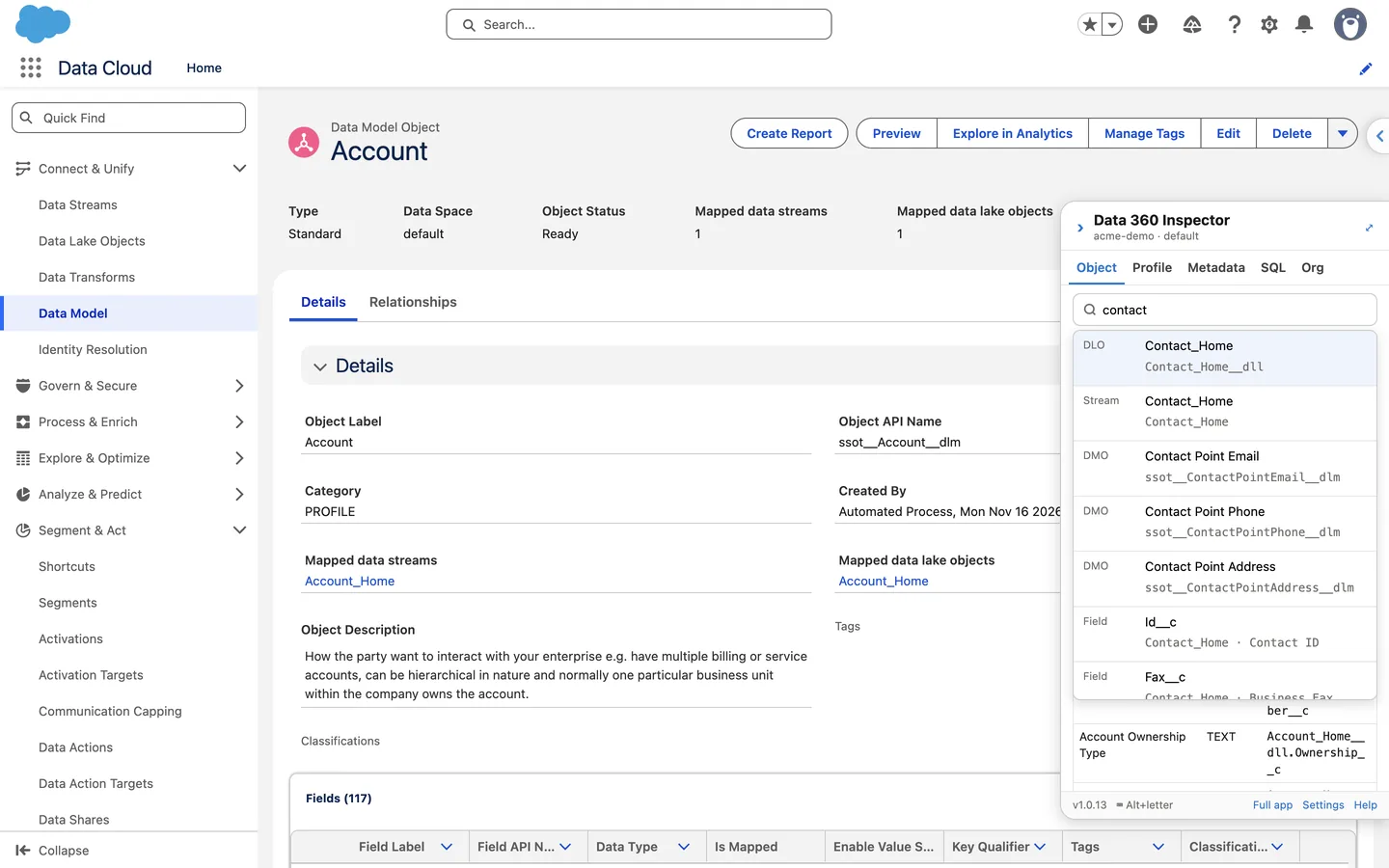
Arrow keys and Enter pick a result, and the Salesforce tab goes to that item's page, so the panel switches to it. The panel can only send the page to a /lightning/ address of the same org; anything else is refused.
Profile, Metadata, SQL and Org
Profile finds people by email, phone, name or ID, the same search as the People page. It runs only when you press Enter, because it queries Data 360.
Metadata lists every object in the data space with its kind and field count, with a filter and a switch between labels and API names.
SQL is a small query editor. It never runs on its own, it adds LIMIT 100 to a SELECT that has no limit, and it asks first when the estimate is over your credit limit in Settings. The object and stream cards send their "Query this" buttons here.
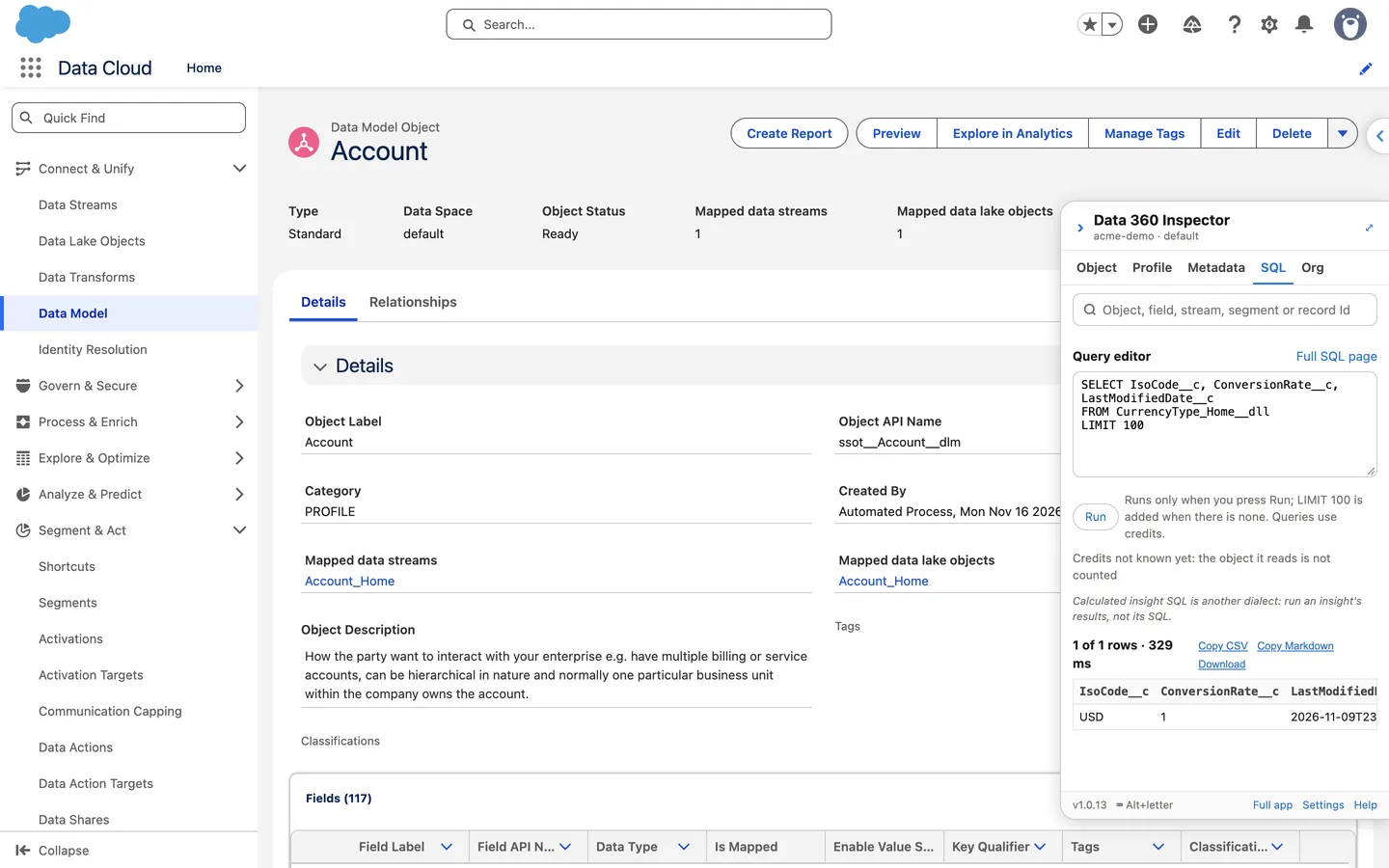
Org shows the org, user, API version and data spaces, and links to the full app. It also says whether a Data 360 token is available, which matters for one thing I tried.
The Data 360 token, and why the panel does not need it
Data 360 has its own API host per org, the tenant, and Salesforce documents a token exchange at /services/a360/token to reach it. I built that into the panel, then tested it with a normal browser login: Salesforce answers invalid_scope, because a browser session carries no Data 360 scopes. Only an OAuth login through an app with the cdp_api scope can be exchanged.
That turned out not to matter much. Every card in the panel reads through the org's own ssot API with the session you already have, as the full app does. The Org tab says plainly when no token is available and why, and if you do log in with OAuth through such an app, the tenant calls start working.
Next to Salesforce Inspector Reloaded
Many Salesforce people already have Salesforce Inspector Reloaded, so I installed it next to the panel and used both on the same pages.
- Both tabs sit on the right edge: Inspector Reloaded's near the top, the D360 tab further down, so they do not overlap.
- When Inspector Reloaded's popup is open, it draws over the D360 tab, not under it.
- Our panel, when open, sits on top of the page, so close it to reach Inspector Reloaded's tab again.
- Keyboard shortcuts do not clash: Inspector Reloaded uses Alt+I on the page, and the panel's Alt+letter keys work only inside the panel.
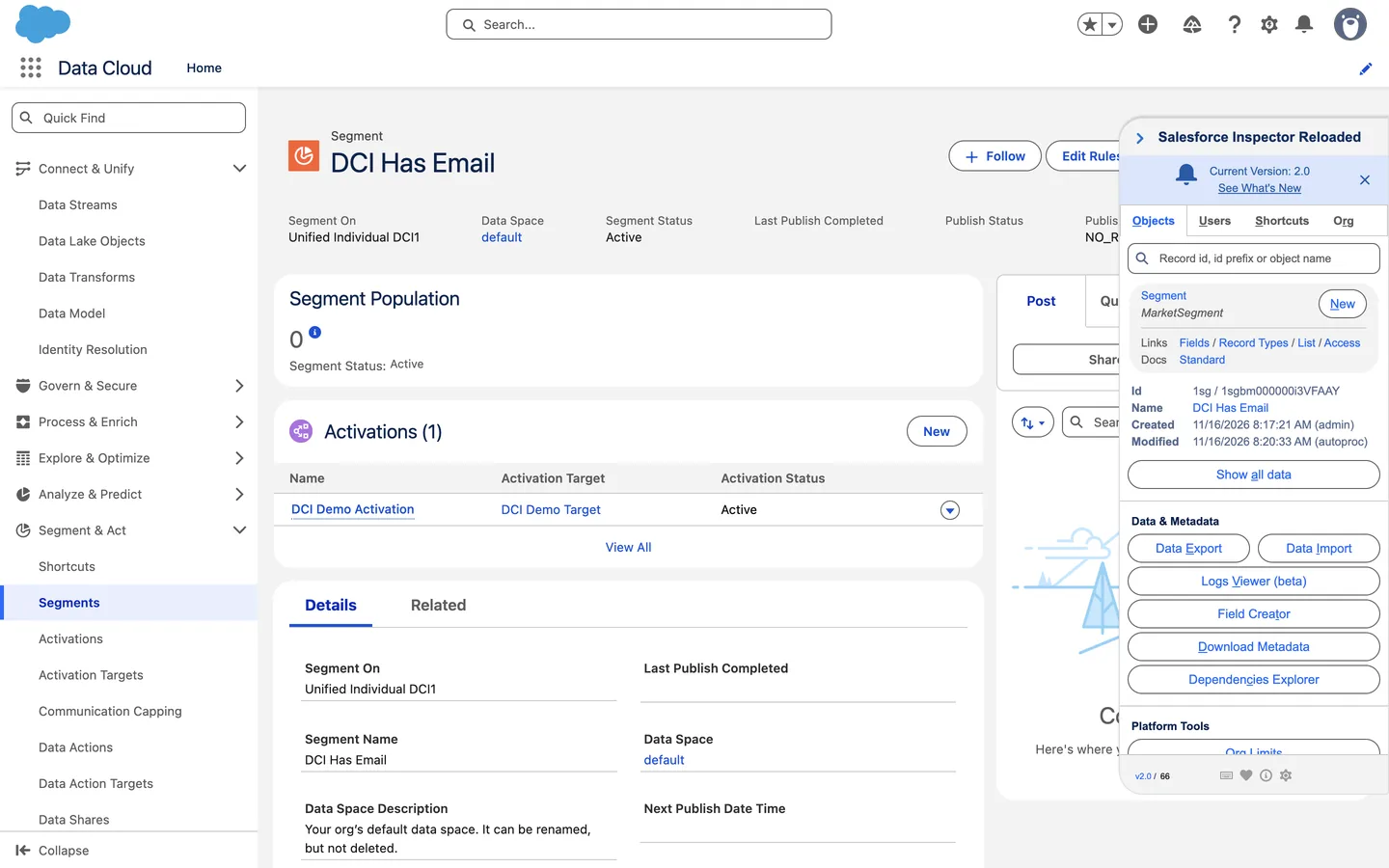
They answer different questions. Inspector Reloaded is about core Salesforce records and metadata; the panel is about Data 360: unified profiles, data model objects, segments, streams and what depends on what.
What it asks for
The panel needs the extension to run on Lightning and Setup pages, so this version adds those hosts. Chrome asks you to approve that once when the update arrives. Administrators can still limit the extension to their own orgs with Chrome's runtime host settings; docs/enterprise-deployment.md has the patterns, now including the Lightning and Setup domains.