 Data 360 Inspector
Features · People and identity
People
One person across identity resolution: unified record, sources, contact points, engagement and segments.
Video coming soon.
From the article Everything Data Cloud knows about one person, on one page (part 6 of the series).
"Can you check what Data Cloud has for jane.doe@example.com?" It sounds like one question, but in Data Cloud it is several. Profile Explorer shows a unified profile, but not always the source records behind it side by side. The contact points, the engagement events and the segment membership each live in their own Data Model Object (DMO), and the SQL to join them depends on which identity resolution ruleset you mean.
People in Data 360 Inspector answers it in one search. The next two days cover why the records were merged, and Day 9 covers looking up a whole list at once.
Search by email, phone, name or ID
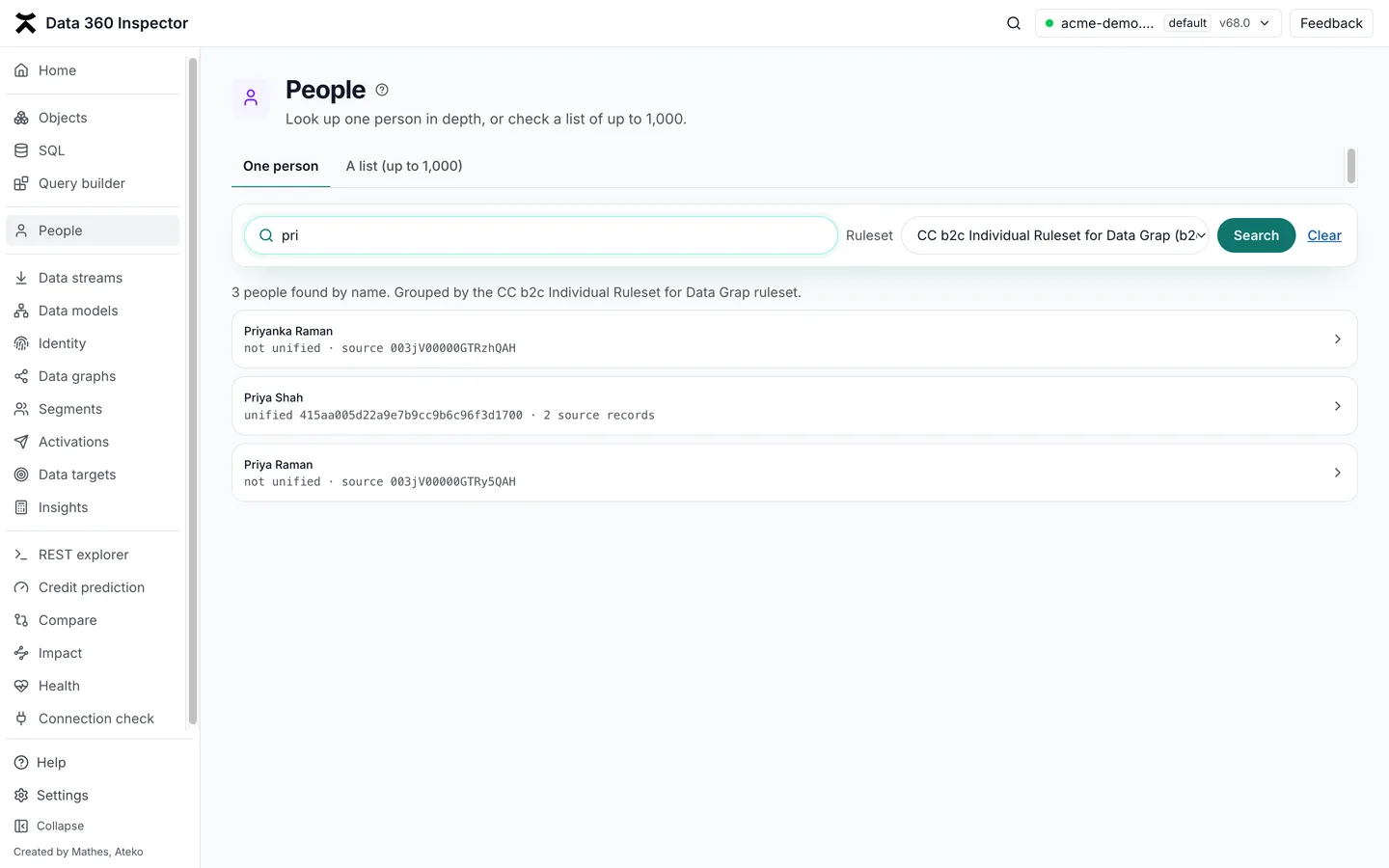
Type into the search box and pick a ruleset. The Inspector works out what you typed:
- Anything with an
@is an email, matched exactly and without regard to case. - Digits with spaces, dashes or brackets are a phone number. It compares digits only, and for a number with a country code it also tries it without one, because many orgs store phones as typed.
- A long code with digits and no spaces is an ID, either a source Individual ID or a unified profile ID.
- Anything else is a name, matched anywhere in the first and last name.
Use * as a wildcard, for example *@example.com. Ctrl+K works too: whatever you type there, the last result is "Find person", which opens this search. And if you press Search with nothing typed, the Inspector suggests ten random people from the org to try, with Another 10 for more.
The ruleset picker lists every identity resolution ruleset for Individuals, with its ID and how its last run ended, such as "Test Rule 1 (R001), last run success". The results are grouped by unified profile under that ruleset, so two source records of the same person show as one result: "unified ... · 2 source records". When the source records carry different names, the result lists them all, such as "Jonathan Rivera, Jon Rivera". A source record that the ruleset did not unify shows as "not unified".
Click a result to open the person; a search that finds only one person opens it straight away. When a search finds several people, a bar above the profile has Results, previous and next, and "Result 2 of 5", so you can step through them. The Inspector keeps the search and up to 15 opened profiles in memory while the page is open, and forgets them when you close it or press Clear.
The person at a glance
The top card has the name, the unified profile ID with a badge such as "3 source records" and the ruleset, and a few short facts from the record when they are filled, such as language, country or birth date. A person the ruleset did not unify shows the source record ID and "Not unified by" the ruleset instead.
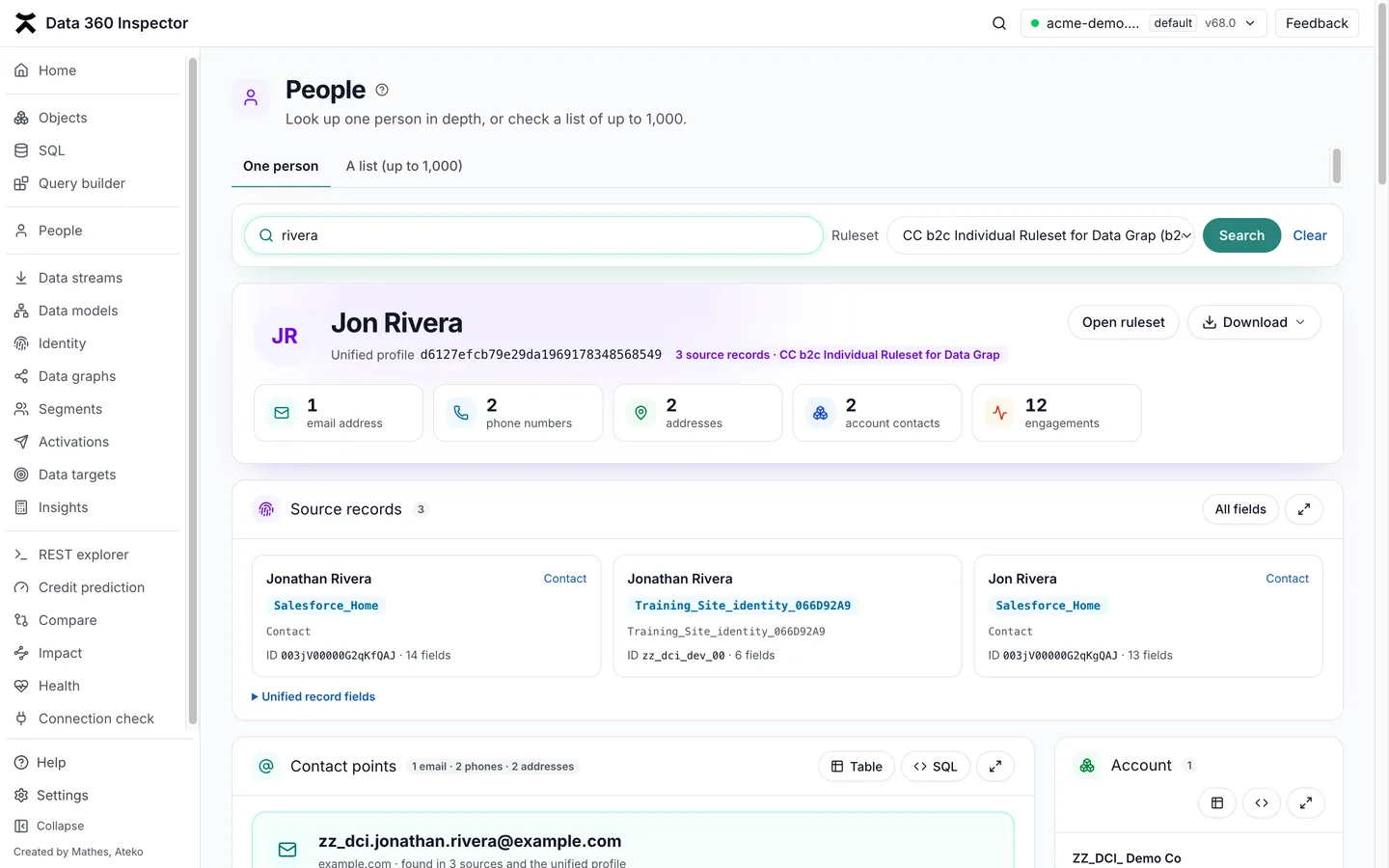
Under it are up to six tiles with counts: email addresses, phone numbers, addresses, the largest related object, engagements and segments now. A tile with nothing to count is left out; Jon Rivera is in no segment, so he has five. Click a tile to jump to its section. Indicators lists the true or false fields that are true on the person's record, such as an opt-in flag.
Open ruleset opens the ruleset in Salesforce, and Download saves the whole profile as Markdown.
Source records
Source records is where I start when a profile looks wrong. Each source Individual behind the profile is a card with its name, the data source and data source object it came from, its ID, how many fields it has filled and, when Salesforce recorded them, its match keys. A source record that is a Salesforce record, such as a Contact or Lead, links straight to it (the Contact link at the top right of the card).
All fields shows every filled field on every card, which is the quickest way to see that one record has the middle name the others lack. Unified record fields, under the cards, shows the unified profile's own values.
Every section on the page has the same three buttons on the right:
- Table swaps the cards for a table with every row and field.
- SQL opens the query behind the section on the SQL page, so you can change it.
- Maximize fills the window with that section; Esc brings it back.
Contact points
Contact points groups emails, phones and addresses by value, so an email that came from several sources shows once, such as "found in 3 sources and the unified profile", with the unified row and each source's data source and ID below it. A Primary badge marks the primary one.
When a row of another related object holds a contact point's ID, it shows on that contact point's card, and its own section says how many rows are shown there.
Engagement
Engagement collects the engagement rows of every source record, newest first, grouped by month. Each row shows an icon for its channel, the date and time, a title and its type, and expands on a click to show every field. When there is more than one channel, chips such as "All 12", "Website 10" and "PersonalizationLog 2" filter the list.
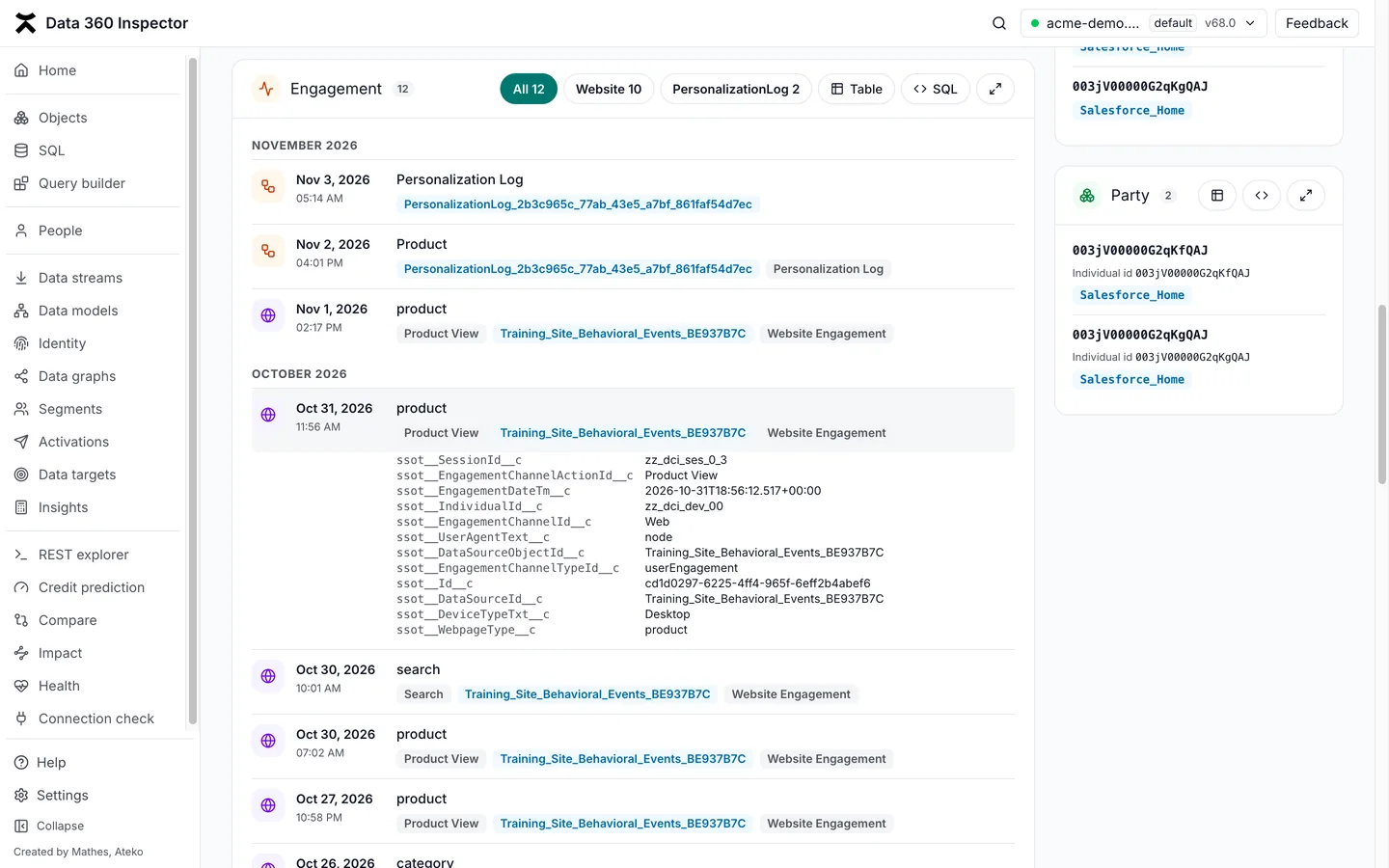
The list shows 50 rows at a time, with Show 50 more.
Segments and everything else
The side column starts with Segment membership: the segments the person is in now, each with a link to the segment and the date they joined. When the org keeps membership history, Recent changes shows when the person was added to or removed from each segment, and Show all history rows lists them.
Below that, and in the main column for the larger ones, come the other related objects. The Inspector does not use a fixed list here. It reads your data model and follows every DMO with a relationship to the source Individual or the unified Individual: accounts, loyalty records, orders, cases, whatever your org has. Objects with dates show as a timeline, and the rest as cards. At the bottom, a line says how many other related objects have no rows for this person, which tells you the Inspector looked.
While those objects load, a banner at the top shows how many of them have been read, with a progress bar, and the sections fill in as each one arrives.
Getting here from elsewhere
People is where the rest of the Inspector sends you. A column with an Individual ID in SQL or Query builder results has View all details, which opens that person here with the ruleset that unified them. On Identity, the largest unified profiles link here the same way.
Limits
A few things to know:
- Each related object shows up to 100 rows for the person. The section count shows a plus (for example "100+") when there are more, and SQL opens the full query.
- A search returns up to 200 source records. For a common name, use the email or a wildcard pattern.
- Name search matches the first and last name fields and the full name field when the org has it. People without a name on their Individual record are found by email, phone or ID.
- Profiles are only kept in memory while the page is open, by design: people's data is not stored by the extension.