 Data 360 Inspector
Features · Segments and activation
Data targets
Every activation target, its errors and its audiences.
Video coming soon.
From the article Where do my Data Cloud activations send, and is the target healthy? (part 21 of the series).
An activation fails with a short status word, and the first thing I want to know is whether the activation is wrong or the place it sends to is. In Salesforce Data Cloud, that place is the activation target: a Marketing Cloud business unit, a cloud storage bucket, an advertising platform, or Data Cloud itself. When a target's connection breaks, every activation that sends to it fails, and the useful questions are which other activations share it and what error it recorded last.
Every target in the data space
Data targets sits in the sidebar under Activations. It reads the ActivationTarget records with a SOQL query, asking for every field the org has, and falls back to a fixed list of known fields if the org refuses that. Targets in another data space are left out; a target without a data space is shown in all of them.
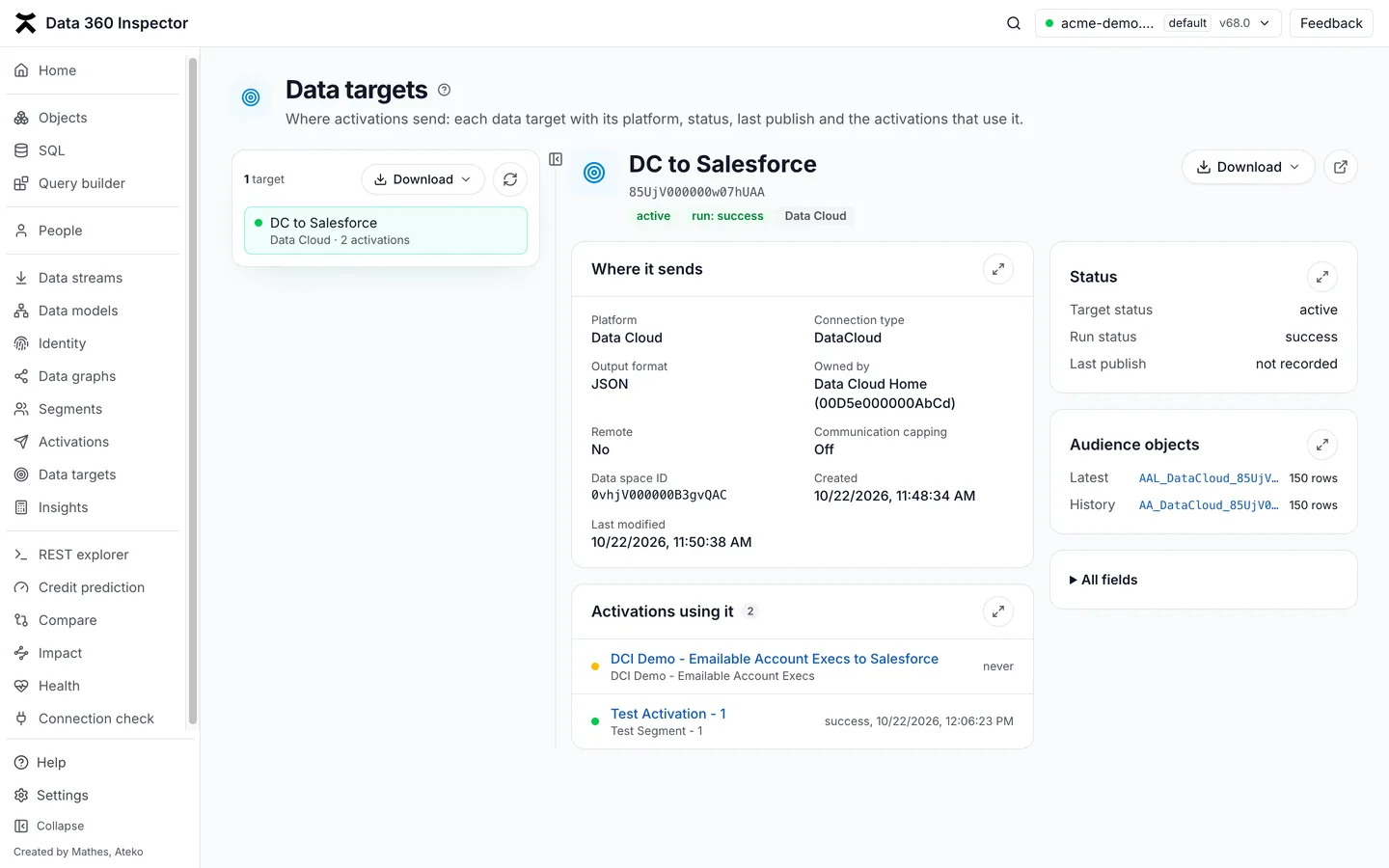
Each line in the list has a status dot, the target's name and, under it, the platform or connection type and how many activations send to it, such as "Data Cloud · 2 activations". The dot follows a simple rule:
- Red when the target recorded an error, either on its last publish or on its status, or when its status mentions an error.
- Grey when its status is anything but Active.
- Blue while it is publishing or processing.
- Green otherwise.
A Filter targets box appears once there are more than five, and matches the name, platform, connection type and target type. Download gives the whole list as a document or a spreadsheet, with the status, run status, last publish, error and number of activations for each target.
One target
Open a target and the header gives its name, record ID and badges for the target status, the run status ("run: success"), the platform and, when it is on, communication capping. If the target has an error, a red banner under the header says so in one line: "Last publish failed" with the error message, or "Target has an error" with the error code, and when it happened.
The Where it sends card lists what the record knows about the destination:
- Platform, connection type, target type and output format.
- Export directory or export endpoint, for file-based targets.
- Owned by, Remote, Communication capping and Privacy type.
- Data space ID, Created and Last modified.
Empty fields are left out, so a Marketing Cloud target and a cloud storage target each show only what applies to them. The demo org's target sends to Data Cloud itself, so the card has no export fields at all.
The Status card next to it splits the two kinds of status a target has. Target status, with the time it last changed and any error code, says whether the connection itself is healthy. Run status and Last publish, with the publish error text, say what happened the last time something was sent. Keeping them apart helps: a target can be Active with a failed last publish, and those are different problems. When the record has no time for the last publish, the card says "not recorded" rather than leaving a gap.
Activations using it
Activations using it lists every activation in the data space that sends to this target. Each one has its Health dot, its name, its segment, and its last publish status with the time, and opens its page on Activations. On my demo org the one target has two: Test Activation - 1, last published successfully, and DCI Demo - Emailable Account Execs to Salesforce, which has never published.
This is the list I wanted when I started the page. When three activations fail on the same morning and they all point at one target, the problem most likely sits in the target's connection. When only one of them fails, it is worth looking at that activation's attributes and filters first.
An activation is matched by the target's record ID, or by the target's name when the activation list does not carry the ID. When nothing matches, the card says "No activation in this data space sends to this target."
Audience objects
Data Cloud keeps the audiences it builds for a target in Data Model Objects (DMOs). The Audience objects card lists the Latest, History and Audit objects the target record names, each linked to its page on Objects, with its row count. Their names end in the target's record ID, so they belong to the target, and every activation that sends to it shares them.
The record names these objects without the "__dlm" suffix that DMOs carry, so the Inspector adds it before counting and linking. When an object is not in the selected data space, the count says "not in this data space" instead of an error.
All fields, at the bottom, opens the raw ActivationTarget record in the JSON viewer, for the fields the page does not show on its own. The Download menu at the top gives the target as a Markdown document: every field above, the audience row counts and the activations that send to it.
Limits
A few things to know:
- The page reads the ActivationTarget object, so it shows what Salesforce recorded about the target. It does not test the connection or log in to the platform at the other end.
- The status colours come from the status and error fields. A target that fails without recording an error shows green.
- When the org accepts the query for every field, it returns at most 200 targets. The fallback with named fields returns up to 2,000.
- The audience row counts run when you open a target, as small data queries.
- Activations are matched only within the selected data space.
The Inspector is free on the Chrome Web Store: https://chromewebstore.google.com/detail/data-cloud-inspector/ghiojkipoephhlkcgcgochoihogiahog