 Data 360 Inspector
Features · People and identity
Bulk lookup
Up to 1,000 emails, phones or IDs at once.
Video coming soon.
From the article Are these 400 people in Data Cloud? Check the whole list at once (part 9 of the series).
Some questions arrive as a spreadsheet. A campaign manager sends a list of emails that complained they never got the offer. A support lead pastes twenty customer IDs from tickets. A tester has a column of phone numbers and wants to know which ones made it through ingestion. The question is always the same: which of these are in Data Cloud, are they unified, and are they in the segment?
Looking them up one at a time on People, as I did for the last three days, works for five people. It does not work for four hundred.
Turning it on
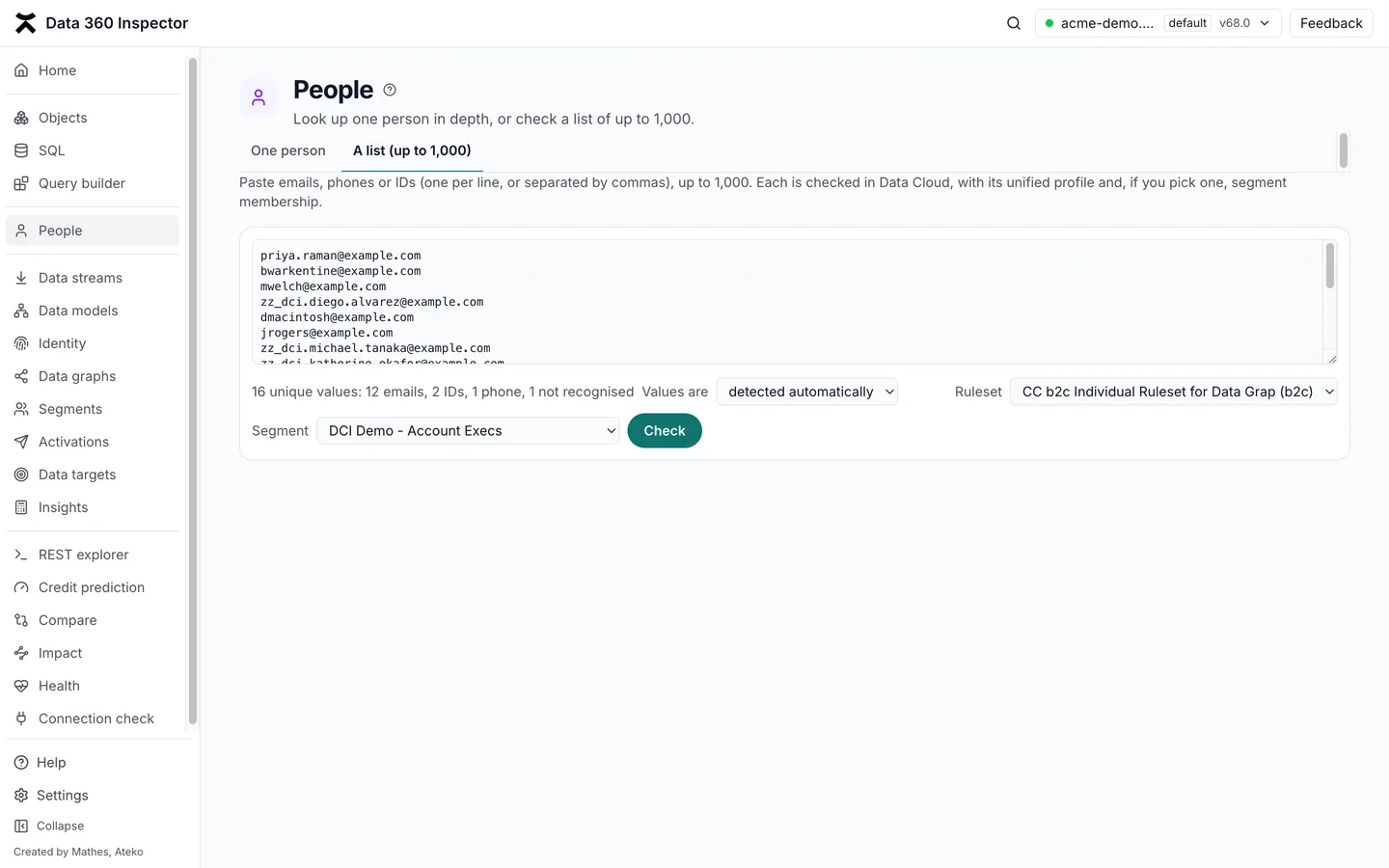
A list is the second tab on People, next to One person. It is experimental, so it is hidden until you turn it on. In Settings > Pages, tick Bulk lookup, marked Experimental, and the tab "A list (up to 1,000)" appears on People. Its address, /bulk, opens the tab directly once it is on.
Paste the list
The tab is one box and a row of choices. Paste emails, phone numbers or IDs, one per line or separated by commas, semicolons or tabs, straight from a spreadsheet column. Duplicates are dropped, ignoring case, and the line under the box says how many unique values it found and what it thinks they are. For the sixteen lines I pasted from my demo org it read "16 unique values: 12 emails, 2 IDs, 1 phone, 1 not recognised".
Values are detected automatically by default:
- Anything with an @ is an email.
- A phone number with at least six digits is a phone, except a plain run of up to nine digits, which is taken for a record number.
- A string of 12 or more letters and digits without spaces is an ID.
- Anything else is "not recognised" and is listed as such rather than searched.
The Values are picker next to the box can force one kind instead: emails, phone numbers, record IDs, or values of a field. That last one lets you pick an object (the Individual or any object related to it, such as a loyalty or account object) and one of its fields, so a list of loyalty numbers or customer codes can be looked up too.
With an empty box, Use 10 random examples fills it with ten email addresses from the org, which is handy for a first try. That is how I started my list; I then added a shared email, two Individual IDs, an address nobody has, a phone number and a line of plain text.
What it checks
Pick a Ruleset to see unified profiles, and optionally a Segment, then press Check. Values are checked in batches of 200 per query. Each kind is looked up where it lives:
- Emails in the email contact points, ignoring case.
- Phones in the phone contact points by digits, both as typed and in E.164 form, and also without a one to three digit country code, because numbers are often stored without one.
- Only people come back: a phone or email contact point that belongs to an Account rather than a person is left out.
- IDs as source Individual IDs, then as external record IDs, then as party identification numbers, and last as unified profile IDs of the chosen ruleset.
When an ID is not a source Individual ID, the Note column says which kind matched ("External record ID", "Party identification number" or "Unified ID"), so a mixed list of IDs is not a guessing game. It also says "Not found" and "Not an email, phone or ID".
The check runs in the background. You can open other pages while it works, and the progress line is there when you come back.
The results
A row of totals sits above the table: Checked, Found, Not found, Unified and In several profiles, plus the number in the segment when you picked one. Filter buttons above the table, each with its count, narrow it to Found, Not found, In several profiles, In the segment, Not in the segment, or Not an email, phone or ID.
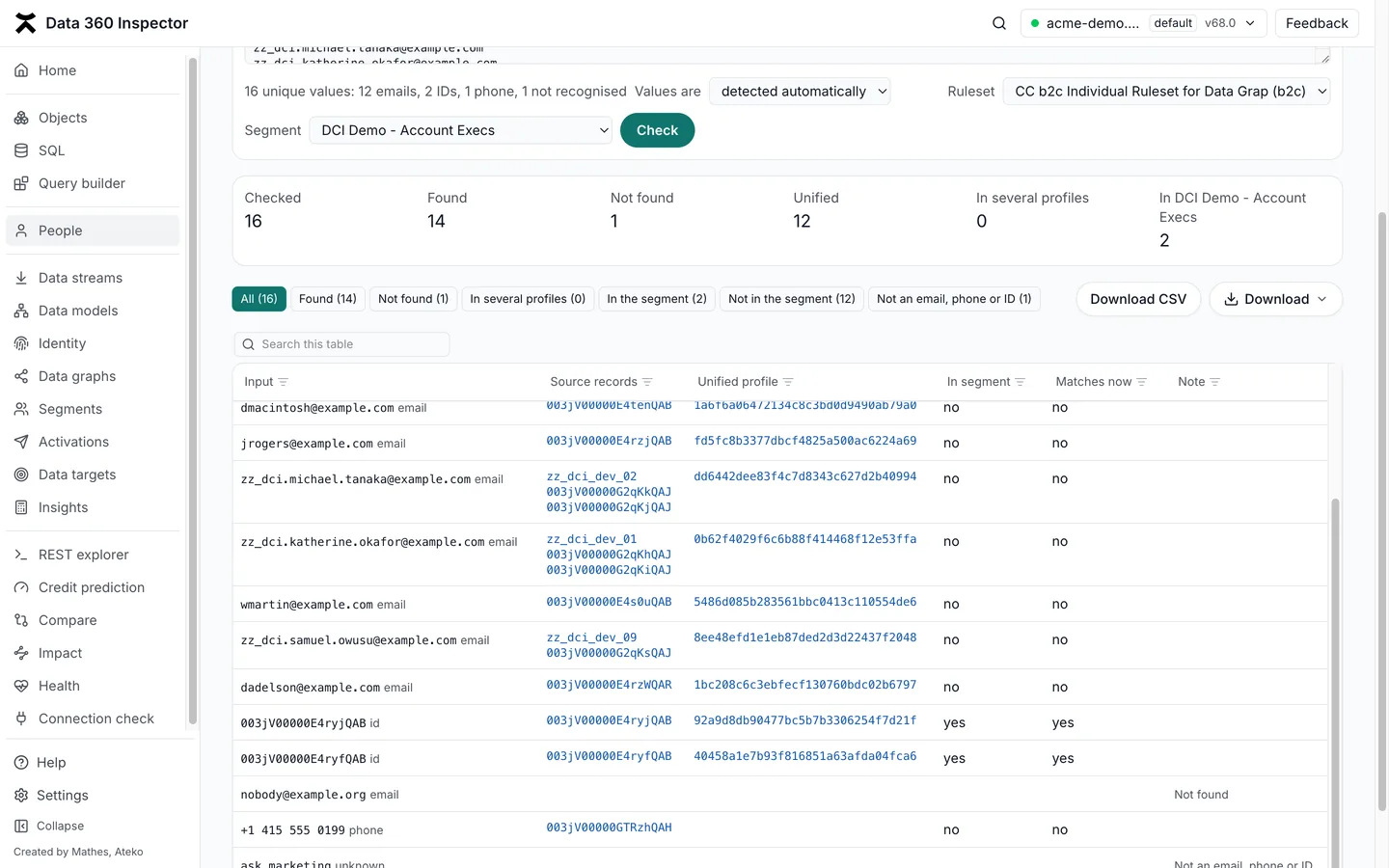
Each row shows the input, the source records it found and the unified profiles they belong to. Both are links that open the person on People, under the same ruleset, so the deep look from the past few days is one click away. In several profiles is worth a look on its own: one email in two unified profiles is often a sign that a match rule needs more than email.
With a segment picked, two columns are added:
- In segment, from the segment's membership table, which reflects its last publish.
- Matches now, from the segment's criteria run as SQL against today's data, for these people only.
When the two disagree, the segment has not been published since the data changed, or the person changed since the last publish. That is usually the answer to "why did this customer not get the email?", and it comes back for the whole list at once.
Downloads, and where results are kept
Download CSV saves every row with the source and unified IDs, the segment columns and the note. The Download menu exports the filtered view as Markdown, Word, PDF, HTML or Excel.
Bulk lookup results are people's data, so they are kept only in the browser's session storage and are gone when the browser closes. Going to another page and back keeps them; closing Chrome does not.
In my demo org I checked sixteen values against DCI Demo - Account Execs. Fourteen were found, one was not, and the line of plain text was set aside as not an email, phone or ID. Twelve had a unified profile in the ruleset I picked. The two Individual IDs I added are Account Executives, and both read yes in In segment and in Matches now, so the segment's last publish and today's data agree on them. priya.raman@example.com found two source records, Priya Raman and Priyanka Raman, which share that address. Neither had a unified profile in that ruleset yet, which is the kind of row I would open on One person next.
Limits
A few things to know:
- Up to 1,000 values per check; beyond that, only the first 1,000 are checked and the line under the box says so.
- Names are not supported. A list of names is "not recognised"; use One person for a name.
- Phone matching compares digits. A number stored with a different country code, or with an extension, may not be found.
- Unified profiles only show when a ruleset is picked. A segment built on the unified Individual needs the ruleset that writes it, or the segment columns will say no for everyone.
- Matches now is blank when the segment's criteria cannot be turned into SQL.
- Every batch is a Data Cloud SQL query, so a list of 1,000 emails, a ruleset and a segment runs a few dozen queries.
- It is experimental: the detection rules and wording may change.